

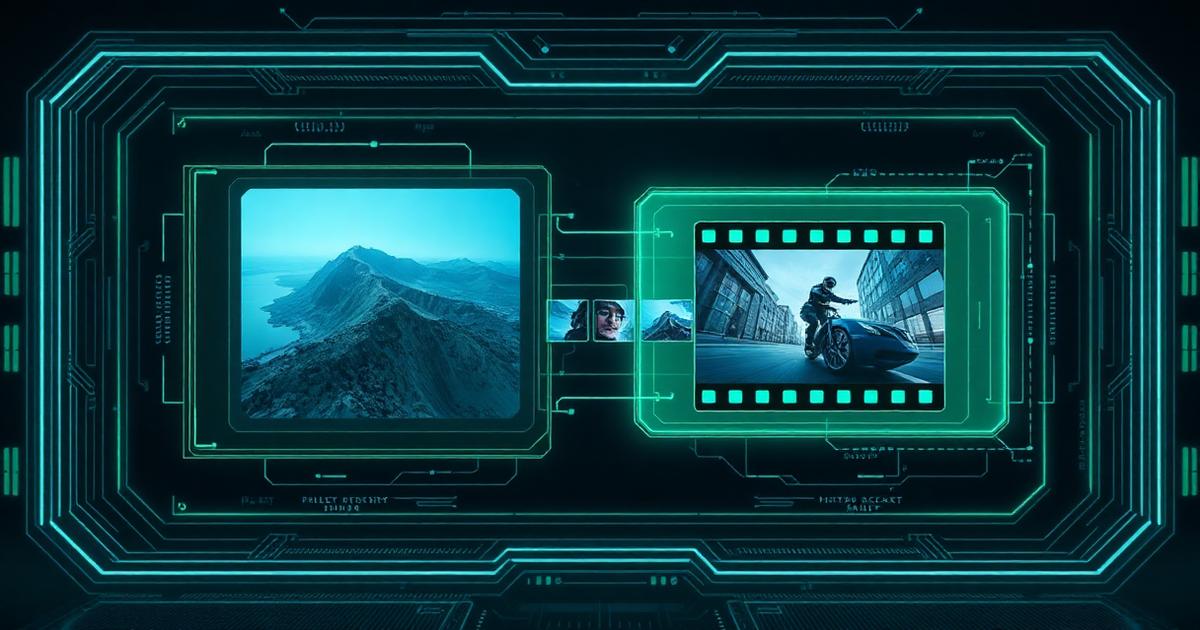
Why Everyone Is Turning Photos Into Videos With AI
Remember when creating a video meant hiring a videographer, spending hours in editing software, and hoping the final cut actually looked good? Those days feel like ancient history. In 2026, all you need is a single image and the right AI tool, and you can have a cinematic video clip ready in under a minute.
Image-to-video AI isn't a tech demo anymore. It's a practical, everyday tool that millions of creators, marketers, and business owners rely on. Instagram reels, TikTok content, YouTube shorts, product ads. The demand for video content has never been higher, and the barrier to creating it has never been lower.
Here's what makes this exciting: you don't need any technical skills, expensive software, or even existing footage. Got a product photo? Turn it into an animated showcase. Have a portrait? Make it come alive with natural movement. Have a landscape shot? Watch the clouds drift and the water ripple.
I've tested every major tool on the market over the last few months. This guide is what I learned, with the strengths and weaknesses of each option laid out so you can pick the right one for your project without wasting hours on the wrong choice.
What Is Image-to-Video AI?
At its core, image-to-video AI is exactly what it sounds like: technology that takes a still image and transforms it into a moving video. The way it does this is fascinating, and understanding the basics helps you get much better results.
Traditional video requires capturing 24 to 60 frames for every second of footage. Image-to-video AI flips this on its head. Instead of recording those frames, the AI generates them. It analyzes your image, understands the scene, the depth, the lighting, the context, and then imagines what the next frames would look like if the scene were actually moving.
Think of it like this: if you show a human a photo of ocean waves, they can imagine how those waves would move. AI models trained on millions of videos can do the same thing, but they actually render that imagination into real video frames.
The key difference between image-to-video AI and a basic animation tool is intelligence. A simple animation might zoom into your photo or add a pan effect. AI-powered tools understand what's in the image. They know that hair should blow in the wind, water should flow downhill, clouds should drift slowly, and fabric should sway.
This technology is powered by diffusion models, the same family of models behind Midjourney and DALL-E. They've been further trained on video data, so they understand temporal consistency. The result? What would have taken a motion graphics artist hours to create can now be done in seconds, and the quality has reached a point where AI-generated clips are genuinely hard to distinguish from real footage.
How Image-to-Video AI Works
You don't need a computer science degree to use these tools, but knowing the basic process helps you work with them more effectively. Here's the simplified pipeline most tools follow:
Image Analysis
The AI scans your image to identify objects, people, backgrounds, depth layers, and lighting.
Scene Understanding
Using its training data, it understands context: skies move differently than water, people differently than trees.
Motion Prediction
It predicts natural motion patterns for each element based on physics and learned behaviour.
Frame Generation
New video frames are generated one by one, each slightly different, creating smooth movement.
Temporal Smoothing
The model ensures consistency between frames so movement looks natural, not jittery.
Output Rendering
Final frames compile into a video file (typically MP4) at your chosen resolution and frame rate.
Most tools also let you add text prompts alongside your image. For example, upload a photo of a mountain lake and add the prompt "gentle wind rippling the water, clouds drifting slowly, birds flying in the distance." The AI uses both the visual information and your description to create more accurate motion.
Some advanced tools like Runway offer a "motion brush." You literally paint on parts of the image to tell the AI where motion should happen and in which direction. This level of control was unthinkable a year ago, and it's what makes 2026's tools so much more practical than earlier versions.
Top Free AI Tools to Convert Images Into Videos
I've spent weeks testing every major tool. Below are the six that consistently delivered the best results while offering free access. Each has its own strengths, so the best one depends on what you're trying to create.
Runway
Free tier (limited credits) · Paid from $12/monthRunway Gen-3 Alpha is one of the most advanced AI video generation platforms available today. It transforms still images into smooth, cinematic video clips in seconds.
Key Features
- Gen-3 Alpha model for ultra-realistic motion
- Text-to-video and image-to-video modes
- Motion brush for precise animation control
- Camera movement presets
- 4K output support
Pros
- Best-in-class video quality
- Intuitive creative controls
- Active development with frequent updates
Cons
- Free credits are limited
- Longer clips require paid plan
- Occasional queue times
Pika
Free tier (30 credits/day) · Pro from $8/monthPika excels at turning images into expressive, stylized videos. The latest model focuses on character animation and dramatic camera moves.
Key Features
- Image-to-video with style transfer
- Lip-sync and character animation
- Scene expansion from a single frame
- Sound effects generation
- Multiple aspect ratios
Pros
- Generous free tier
- Great character animation
- Fast generation times
Cons
- Stylized output may not suit all use cases
- Limited control on free plan
- Watermark on free videos
Kaiber
Free trial available · Paid from $5/monthKaiber specializes in artistic and music-driven video generation. Pair an image with audio and you get a stunning visual music piece.
Key Features
- Audio-reactive video generation
- Multiple art styles (anime, watercolor, 3D)
- Storyboard mode for multi-scene videos
- Flipbook animation style
- Batch processing
Pros
- Perfect for music videos
- Unique artistic styles
- Affordable pricing
Cons
- Less realistic output
- Limited free trial
- Fewer camera controls
Leonardo AI
Free tier (150 tokens/day) · Paid from $12/monthLeonardo combines powerful image generation with growing video capabilities. The Motion feature animates any uploaded image into a short clip.
Key Features
- Image generation + motion animation
- Fine-tuned models for different styles
- Real-time canvas editor
- Community model sharing
- API access for developers
Pros
- Strong image plus video pipeline
- Great community and resources
- Developer-friendly API
Cons
- Video features still maturing
- Token system can be confusing
- Short clip lengths on free tier
Luma AI
Free tier (30 generations/month) · Pro from $9.99/monthLuma's Dream Machine is a breakthrough model for generating realistic, physics-aware video from images. It understands depth, lighting, and natural motion.
Key Features
- Physics-aware motion generation
- Depth understanding from single images
- Realistic lighting and shadows
- Up to 120 frames per generation
- Camera path control
Pros
- Most realistic motion quality
- Excellent depth perception
- Generous free tier
Cons
- Can be slow during peak times
- Some artifacts in complex scenes
- Limited style control
Canva AI
Free plan available · Pro from $12.99/monthCanva's built-in AI video features make it incredibly easy for non-technical users to animate images. Magic Animate and Bulk Create are standout tools.
Key Features
- Magic Animate one-click animation
- Bulk video creation from templates
- Brand kit integration
- Direct social media publishing
- Collaboration features
Pros
- Easiest learning curve
- All-in-one design platform
- Great for teams
Cons
- Less advanced AI models
- Limited customization
- Best features require Pro plan
Step-by-Step: How to Convert an Image Into a Video
Whichever tool you choose, the workflow is surprisingly similar. Here's a universal process you can follow with any of the tools above.
Choose Your Image
Start with a high-quality image. Higher resolution photos give the AI more detail to work with. Avoid blurry, heavily compressed, or very dark images. The AI can only work with what it can see.
Pick the Right Tool
Need realistic motion? Use Luma AI or Runway. Want artistic flair? Try Pika or Kaiber. Need something quick for social media? Canva AI is your best bet.
Upload Your Image
Open your chosen tool, sign up for a free account if needed, and upload. Most tools accept JPG, PNG, and WebP.
Write a Motion Prompt
Describe the motion you want. Be specific: 'gentle wind blowing through the trees, sunlight filtering through leaves, slight camera pan to the right' beats 'make it move' every time.
Adjust Settings
Set duration (3 to 10 seconds is typical), aspect ratio (16:9 for YouTube, 9:16 for TikTok), and quality. Some tools let you control camera movement and motion intensity.
Generate and Preview
Hit generate and wait. Preview the result. Most tools let you regenerate with the same settings if you're not satisfied. The AI produces slightly different results each time.
Download and Use
Once you're happy, download the MP4 and use it directly in social media platforms or video editors.
Pro tip: don't settle for the first generation. Run two or three variations and pick the best. AI video generation has a degree of randomness, and sometimes the second or third attempt produces something significantly better.
Real-World Use Cases
The practical applications are broader than most people realize. Here are the most impactful ways creators and businesses are using image-to-video AI right now.
Social Media Content
Turn product photos into eye-catching reels and stories. Animated content gets 2 to 3x more engagement than static images.
Marketing & Ads
Create professional video ads from product photography without hiring a production team. Perfect for A/B testing visual approaches.
YouTube Content
Generate B-roll footage, animated thumbnails, and intro sequences. Especially useful for news, reviews, or educational channels.
Product Promotion
Animate product images to show different angles, environments, or dynamic lighting effects.
Education & Training
Bring historical photos, diagrams, and illustrations to life. Students retain video information better than static images.
Storytelling & Art
Artists use image-to-video AI to create animated graphic novels, music videos, and visual narratives from illustrations.
Pro Tips for Better Results
After hundreds of generations across multiple tools, these are the habits that make the biggest difference in output quality.
Start With the Best Possible Image
Garbage in, garbage out applies double to image-to-video AI. Take the time to start with a sharp, well-composed, well-lit photo. Five extra minutes choosing or capturing the right source image saves twenty minutes regenerating bad results.
Be Specific in Your Prompts
The difference between a great clip and a mediocre one is often a sentence of specificity. Mention direction (left, right, into the frame), speed (slow, gentle, dramatic), and what should remain still vs move. The model takes your hints seriously.
Generate Multiple Versions
The same prompt produces different outputs each time. Run three to five variations, then pick the best. This costs maybe a minute and dramatically improves your hit rate.
Combine Tools
You don't have to pick just one. Use Midjourney to generate the perfect source image, Luma to animate it, and CapCut to add music and transitions. The combined workflow takes minutes and produces work that looks like it cost thousands.
Match the Tool to the Style
Realistic product shots? Luma. Stylized social content? Pika. Music videos? Kaiber. Quick brand content? Canva. There's no single "best" tool, only the best tool for your specific project.
Save Your Favorite Prompts
When a prompt produces gold, save it. Keep a notes doc with your best prompts for different scenarios. Within a few weeks you'll have a personal library that turns every new project into a 30-second job.
What's Next for Image-to-Video AI
The technology is moving fast. Within the next year, expect longer clips (up to 60 seconds), 4K resolution as standard, and real-time generation. Tools will get better at maintaining character consistency across multiple shots, opening the door to AI-generated short films and even feature-length content.
For creators, this means the gap between idea and finished video will keep shrinking. The bottleneck will move entirely to imagination and storytelling. The technical part will be free, fast, and high quality.
If you've never tried image-to-video AI, start today. Pick one tool from this guide, upload a photo, and create your first clip. It takes less than five minutes, and it will permanently change how you think about content creation.
For more recommendations, browse our free AI tools directory or our complete list of best AI tools in 2026.